
A home for sticker orders
and customer records.
BeaStickersCo kept its sticker orders in a Google Sheet. Moving that history into Orders and Customers lets the shop open a customer and find the work attached to them.
BeaStickersCo operates OrderTracker. The migration figures below come from our November 3, 2026 verification.
Keep the person
with the project.
A custom order has two connected parts: who it is for and what needs making. Customer records keep contact details together. Orders hold the items, due date and progress of the job.
BeaStickersCo’s owner confirmed using these two features. The demonstration below uses fictional records to explain the workflow without publishing customer information.
Visit BeaStickersCo171 spreadsheet entries accounted for
We matched the source entries to the saved workspace and reopened it to check they had persisted. The import added 154 order records alongside the records already there.
29 records kept for reference
Incomplete historical records could still be found for review. Reference records stay outside financial totals, and missing deadlines could stay blank.
Try the same starting point
Create your account, add a customer and enter your first order.
Create your free accountFrom customer to saved order.
Start with the customer
Save a customer record, then select that customer when you enter an order. This keeps the job connected to the right person instead of leaving it as an isolated note.
Explore sticker business workflows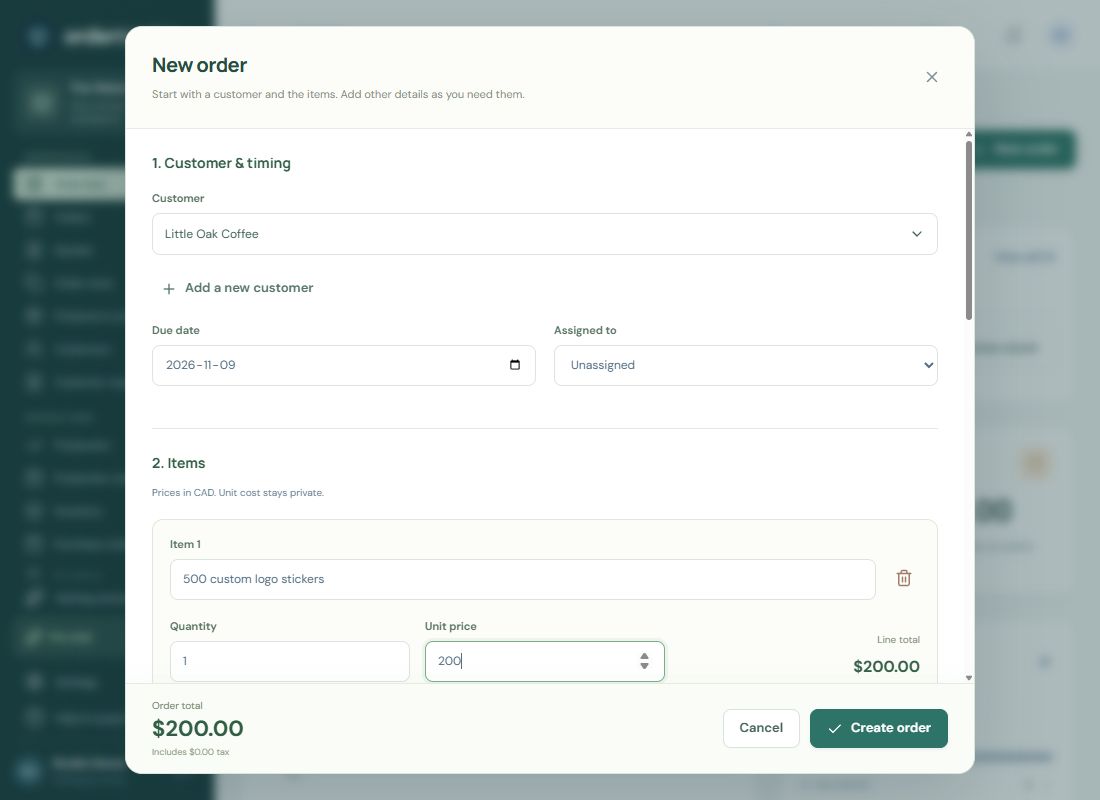
Three moments to check the record.
- When a request arrives: look for the customer before creating a new record. Confirm the current specification, even if they ask for the same as last time.
- Before making the job: open the order, check the promised date and agreed details, then make sure any required artwork approval refers to the right version.
- When the work changes: update the saved order. Keep payment receipts and customer responses with your business records, rather than relying on memory.
What this story does—and does not—show
The verified result is that the spreadsheet entries were accounted for in the saved workspace after the import. We have not measured a reduction in admin hours, higher sales or a financial return, so we do not claim those outcomes.
The three-step demonstration uses fictional records. It shows the Orders and Customers workflow that the owner confirmed using, without exposing the shop’s private customer history.
Try the free order starter kitPrefer to begin in a file? Use one order reference across the kit’s order form and trackers, then decide whether you need a connected workspace.